
































Key Takeaways
- Your iPhone has no infrared blaster, so a small Wi-Fi controller does the work of sending signals to the AC.
- Three routes let you run the unit from your phone: a smart AC controller, Siri with Shortcuts, and Apple Home.
- With a controller like Sensibo, pairing takes about a minute and covers more than 10,000 AC and heat pump models, with no new AC to buy.
- Voice commands through Siri and automations through HomeKit become available once the controller is connected.
- Geofencing, Climate React, and a home screen widget handle the day-to-day without you opening the app.
Yes, you can run your air conditioner from your iPhone. Temperature changes, scheduling, and access from anywhere all work once the setup is in place. One thing surprises people first, though.
No iPhone has ever shipped with an infrared blaster, so there is no AC remote built into the phone itself. A small Wi-Fi controller mounted by the AC does that job instead. It connects to your home Wi-Fi, so you can control your air conditioner from your iPhone at home or while you are away.
All You Need to Know About iPhone AC Control
- Is There an AC Remote Built Into the iPhone?
- Why Run Your Air Conditioner From an iPhone?
- A Smart AC Controller Puts Full Control on Your iPhone
- Set Up Siri and Apple Shortcuts for Voice Commands
- Add the Air Conditioner to Apple Home
- Which Sensibo Features Work Best With an iPhone?
- Does Phone Control Lower Your Cooling Bill?
- FAQ
Is There an AC Remote Built Into the iPhone?

No. From the first model in 2007 to the current lineup, Apple has never put an infrared blaster inside the iPhone. Infrared is the signal a standard AC remote sends, so without that hardware, the phone cannot reach the unit on its own.
The App Store does list apps with names like universal AC remote, and they can look like the working option. But most of them only work once you plug an external infrared dongle into the charging port, which is fiddly and easy to lose.
The difference between Sensibo and a universal AC remote comes down to where the infrared signal starts: a dongle app fires it from the phone, and a controller fires it from a device mounted by the AC.
The reliable way to get a working AC remote on the iPhone is to add a Wi-Fi controller to the air conditioner. The controller stores the infrared codes for your unit and receives instructions from the phone over your home network. Your iPhone sends the command, the controller sends the infrared signal, and the AC responds. That gives you a real AC remote in the iPhone with no accessory hanging off the bottom of the phone.
Why Run Your Air Conditioner From an iPhone?
The phone is already in your hand for most of the day, so putting the AC on it ends the search for a plastic remote that gets lost in the couch.
- Set the temperature before you get home, so the room is comfortable when you walk in.
- Turn the unit off from work when you realize you left it running.
- Reach Siri and Apple Home without extra apps, since both are built into the phone.
- Hold several units in one place, so a whole home or a rental runs from a single screen.
Because the iPhone connects over the internet, none of this depends on being in the same room. You can control your AC from your iPhone at home, at work, or on vacation.
Three setups cover almost every situation, and most people combine them.
|
Approach |
Best for |
What you need |
|
A smart AC controller |
Full control of temperature, mode, and schedules from the app |
A Sensibo device and home Wi-Fi |
|
Siri and Shortcuts |
Quick voice commands without opening an app |
The Sensibo app set up on the iPhone |
|
Apple Home (HomeKit) |
Running the AC beside other smart devices, with automations |
A Sensibo Air or Air Pro |
Let's get into the details on each one.
A Smart AC Controller Puts Full Control on Your iPhone
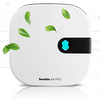
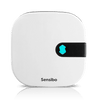
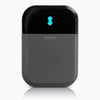
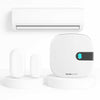
A smart AC controller is a small unit that takes over from the infrared remote for your air conditioner. It plugs in near the AC and connects to your home Wi-Fi, so the phone can reach it. Sensibo works with more than 10,000 air conditioner and heat pump models, and nothing about the AC itself has to change. You keep the unit you own and add control on top of it.
Setup runs in about a minute, with no tools.

Download the Sensibo App
Get the Sensibo app from the App Store and create an account. Every setting, schedule, and automation you create later is saved here.
Connect the Controller to Wi-Fi
- Power on the Sensibo device near your AC and wait for its light to turn blue.
- In the app, tap Add Device and scan the QR code on the back of the unit.
- When prompted, pick your home network and enter the password, then give it 30 to 60 seconds to connect your air conditioner to WiFi and confirm.
- Sensibo joins 2.4GHz networks only, so on a dual-band router, choose the 2.4GHz name during setup, and keep the controller close to the router while it links.
Once connected, the controller takes commands from your phone, both in the house and from anywhere with internet.
Pair It With Your Air Conditioner
Pick your AC brand and model in the app. Sensibo loads the matching infrared codes so the controller can operate your unit right away.
Start Running the AC
Change the temperature, switch between cooling, heating, fan, and dry, check the current room status, and set a schedule for the week. From this moment, you control your air conditioner from your iPhone as fully as the original remote, with extras the remote never had.
Set Up Siri and Apple Shortcuts for Voice Commands
Voice control comes straight from the Sensibo app, with no technical setup. You set the air conditioner the way you want it, save that as a spoken phrase, and Siri repeats it on command. Say "Hey Siri, turn on the AC" or "Hey Siri, set the bedroom to 72," and the unit follows.
Three taps set one up:
- Open the Sensibo app and set your AC to the exact state you want, such as cooling at 72 degrees.
- Tap the settings wheel on that screen, then choose "Add a Siri Shortcut for this state."
- Record or type the phrase you want to say, then tap "Add to Siri."
The shortcut now lives on your iPhone, and you can rename or group your commands anytime in the Shortcuts app. Most people keep two or three on hand: one to cool the bedroom, one to warm the living room, one to shut everything off at night.
Add the Air Conditioner to Apple Home
Apple Home brings the AC into the same app as your bulbs, plugs, and thermostats, so one screen runs the room. This works with Sensibo Air and Sensibo Air Pro, which hold HomeKit certification.
Once the controller is added in the Home app, the air conditioner shows up as a tile you can tap, ask Siri about, or add to a scene such as Good Night or Leaving Home. From there, you can control the air conditioner from your iPhone next to everything else in the house.
Setup runs across two apps, the Sensibo app to make the code and Apple Home to add the device:
- In the Sensibo app, open your device settings and tap Apple HomeKit to generate the setup code.
- Open the Apple Home app, tap the plus button, and choose Add Accessory.
- Scan the code shown in the Sensibo app, or type the 8-digit code by hand.
- Assign the AC to a room and give it a name.
Automations are the main reason to use Apple Home for the AC. You can set the unit to react on its own:
- Time, so cooling starts before you get home.
- Location, so the unit switches off once everyone's phone has left the house.
- Other devices, so the AC pauses when a HomeKit window sensor reports an open window. Sensibo's own door and window sensor handles the same job inside the Sensibo app, with no HomeKit setup needed.
A few advanced settings, such as fan speed, are available only in the Sensibo app, so most people keep both installed. The core controls of on, off, mode, and temperature all run from Apple Home.
Which Sensibo Features Work Best With an iPhone?

Geofencing uses your iPhone's location to trigger the AC. When your phone gets close to home, the unit can start cooling, and when your phone leaves, it can shut down. You stop paying to cool an empty room, and you avoid walking into a hot one.
Climate React watches the real room temperature and adjusts on its own. You set the comfortable range once, and the controller turns cooling or heating on and off to hold it, with no tapping from you.
For fast access, the Sensibo widget adds quick actions to your home screen, so a timer or auto-off is one tap away without opening the app. Siri also answers from the Lock Screen, so a spoken command works before you unlock the phone.
Running more than one unit stays simple, because the same app handles them together. You can control multiple AC units from a single screen, name them by room, and reach a rental or an office from the same login. That makes it easy to control your air conditioner with an iPhone across a whole property from one place.
Does Phone Control Lower Your Cooling Bill?
Cooling is one of the bigger charges on a summer electric bill. EIA figures put space heating and air conditioning at more than half of a typical home's yearly energy use, and cooling drives that share up in hot months.
When you control the AC from your iPhone, you trim the hours it spends running for no reason. A weekly schedule matches the unit to your routine, so it works less during the workday when nobody is there to feel it. Setting an exact temperature, rather than guessing with a physical remote, keeps the compressor from overcooling the room and running longer than it needs to.
The AC itself performs the same. What changes is how many hours it runs, and those hours are the part of the bill you can bring down.
FAQ
Does the iPhone Have a Built-In Remote Control for the AC?
No. No iPhone includes an infrared blaster, so the phone needs a Wi-Fi controller to send signals to the air conditioner.
Can You Control the AC From Your iPhone When You Are Away From Home?
Yes. As long as the controller stays connected to Wi-Fi, your commands reach it over the internet from anywhere with a signal.
Does Sensibo Work With Any Air Conditioner?
It works with any AC or heat pump that uses an infrared remote, which covers more than 10,000 models. Central systems run from a wall thermostat, so those need a different kind of device.
Do You Need Wi-Fi, or Does It Work Offline?
Remote control needs the controller on Wi-Fi, and app control pauses if the network drops. Your original AC remote still works during an outage, and app control returns once Wi-Fi is back.
Does Controlling the AC With Siri or Apple Home Cost Extra?
No. App control, Siri Shortcuts, and HomeKit are included. The optional Sensibo Plus plan adds extras like Climate React+.
How Is Sensibo Different From the Manufacturer's Own App?
A brand app only controls that brand's newer Wi-Fi units. Sensibo adds smart control to almost any infrared AC regardless of brand or age, and it brings Siri and Apple Home along with it.